
Fix Your CCTV Fast: Proven Troubleshooting Guide
CCTV Troubleshooting Guide UAE: When a security camera system goes silent at the wrong moment, the cost isn’t just inconvenience — it’s a gap in protection exactly when evidence matters most. The good news: most CCTV troubleshooting situations aren’t hardware disasters. They’re misconfigurations, dusty lenses, or overlooked power supply checks that a systematic approach resolves quickly.
What makes CCTV camera problems frustrating is the diagnostic ambiguity — is the fault in the camera, the DVR/NVR recorder, the network, the hard drive, the PoE switch, or the cabling? This guide cuts through that confusion, problem by problem.
Poor Image Quality: Blurry, Foggy, or Pixelated Footage
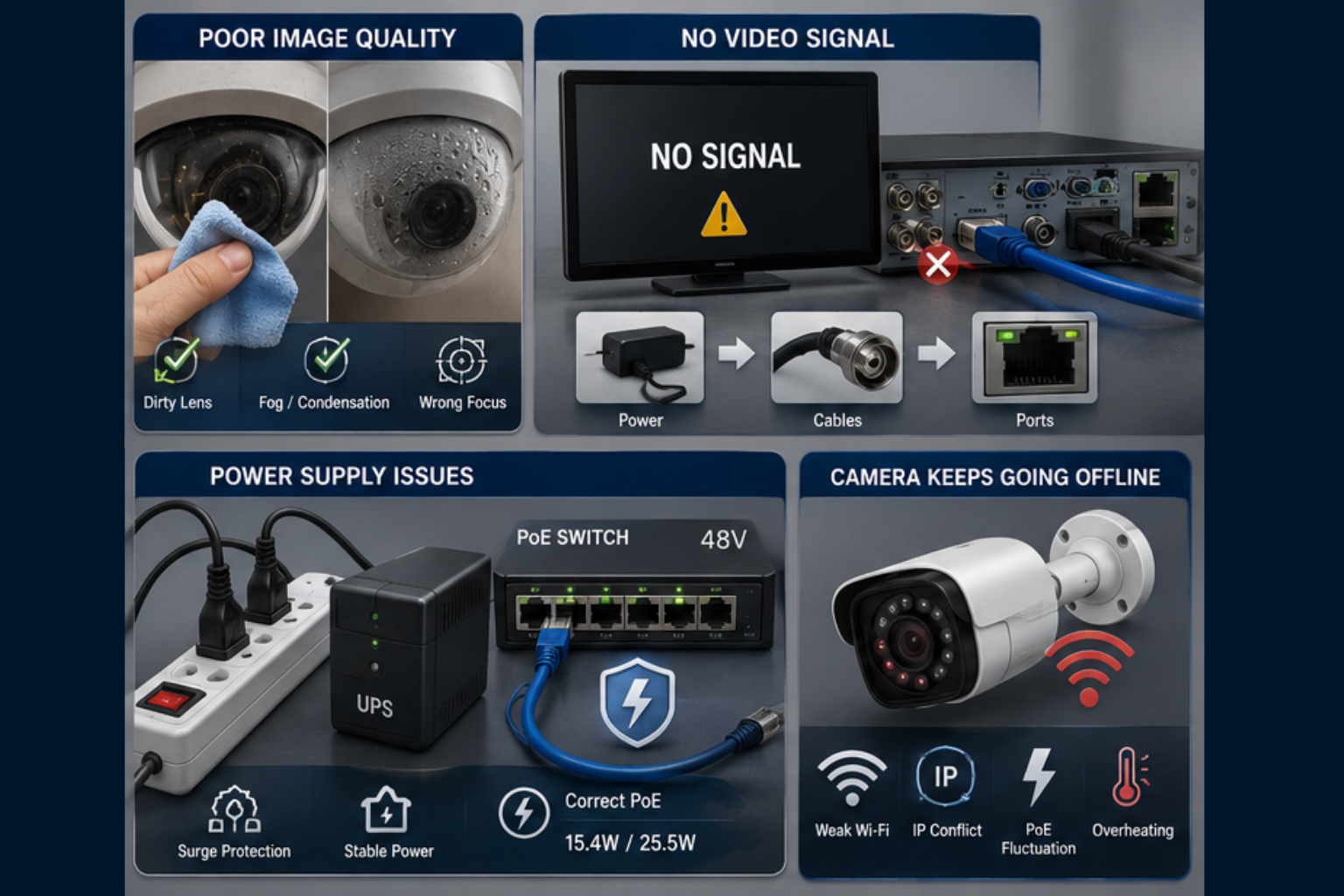
A blurry CCTV image is the most reported fault across both analog and IP camera systems. The reflex is to blame the camera — but in most cases the culprit is environmental: a dirty lens, dome cover condensation, or a camera position never optimized for the target zone.
Clean the lens monthly using a soft microfiber cloth and check the weatherproof housing for internal fogging, which signals a broken seal. Wrong focus settings are the second-most common cause — access your recorder’s live view and adjust focus manually at the actual distance needed for license plate or facial recognition.
Low-resolution cameras below 1080p simply cannot deliver identification clarity. 4K Ultra HD cameras offer dramatically better detail for critical zones. Pair them with properly tuned H.265 compression settings in your DVR/NVR to balance storage against image usability. Also check lighting — a camera rated for low-light fails badly when pointed at a backlit doorway without supplemental IR illuminators.
No Video Signal: Black Screen or “No Signal” Message
A blank monitor output points in two directions: the recorder has stopped outputting video, or individual camera feeds are absent on a working recorder. Identifying which immediately halves your diagnostic work.
For recorder output failures, the cause is almost always a display resolution mismatch — a setting was changed to a resolution the monitor cannot render. Connect the NVR or DVR to a router, use the manufacturer’s Config Tool on a Windows PC to access the web interface, navigate to Display Settings, and select a supported resolution.
For absent camera feeds, the sequence is: power first, then cables, then ports. Similarly analog HD-over-Coax systems: reseat the BNC connector and verify the power adapter voltage and IP camera systems: check the PoE switch port LED, confirm the camera appears in your router’s device list, and look for IP address conflicts. If multiple cameras drop simultaneously, the fault is upstream — the PoE switch, recorder network port, or main cable run. The NVR/DVR service page covers recorder-specific diagnostics for all major brands.
Power Supply: The Root of Most CCTV Failures
Experienced CCTV technicians check power before anything else. Voltage instability, failing power adapters, and surge damage account for the majority of apparent camera or recorder failures that are misdiagnosed as component faults.
Connect all recorder and camera power supplies through a surge protector or uninterruptible power supply (UPS). PoE cameras require 48V at the switch with sufficient per-port wattage — 15.4W for 802.3af and 25.5W for 802.3at. A 16-port PoE switch powering 16 cameras simultaneously needs a minimum 240W power budget. Undersized switches drop cameras progressively as total draw approaches the rated limit. Professional CCTV maintenance services include routine power delivery testing as part of every preventive visit.
Camera Keeps Going Offline
An IP camera that connects briefly then disappears typically signals one of four root causes: weak Wi-Fi signal, DHCP IP conflict, PoE power fluctuation, or overheating.
Assign static IP addresses to every camera — this eliminates silent address conflicts after power cycles or router reboots. Firmware bugs in older models cause crash loops that manifest as daily reconnections. Check manufacturer support pages quarterly and update firmware during low-activity hours for Hikvision and Dahua devices.
Overheating is a genuine risk for outdoor cameras in direct UAE sunlight. Add a sunshade bracket or reposition to a shaded mounting point. For wireless cameras that persistently drop signal, migrating to wired PoE delivers reliability that Wi-Fi simply cannot match in high-temperature outdoor environments.
Troubleshooting the DVR/NVR Recorder
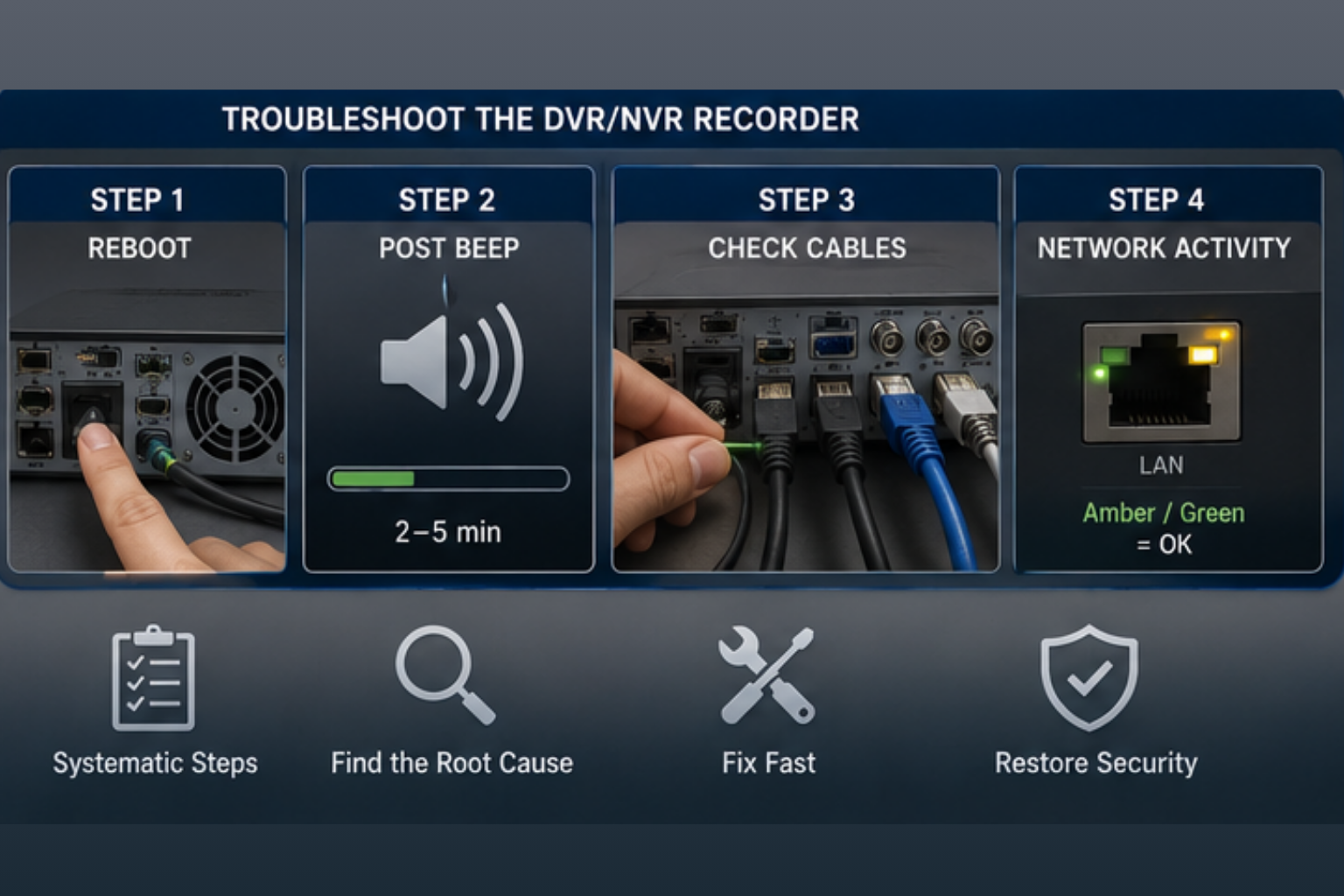
Follow a disciplined four-step sequence before drawing conclusions:
Step 1 — Reboot: Power off via the rear switch. After 30 seconds, restore power and listen for the hard drive spinning up steadily — clicking or grinding indicates imminent failure.
Step 2 — Post Beep: Wait 2–5 minutes for the startup beep confirming a successful boot. A beep with no monitor output means a display resolution mismatch, not a recorder fault.
Step 3 — Cable Connections: Power off the monitor, disconnect and firmly reseat every cable at the recorder’s rear panel — HDMI, VGA, network, and power. Loose connections cause more apparent “dead” systems than actual component failures.
Step 4 — Network Port Activity: Connect a network cable from the recorder’s LAN port to a router and observe the port LED. Amber or green confirms the recorder is alive and communicating. On NVR systems, confirm you are using the dedicated LAN port, not one of the PoE camera ports.
Recording Failures and Playback Issues
A system that appears to record but has no footage when needed is more dangerous than one that visibly fails — because the gap isn’t discovered until after an incident.
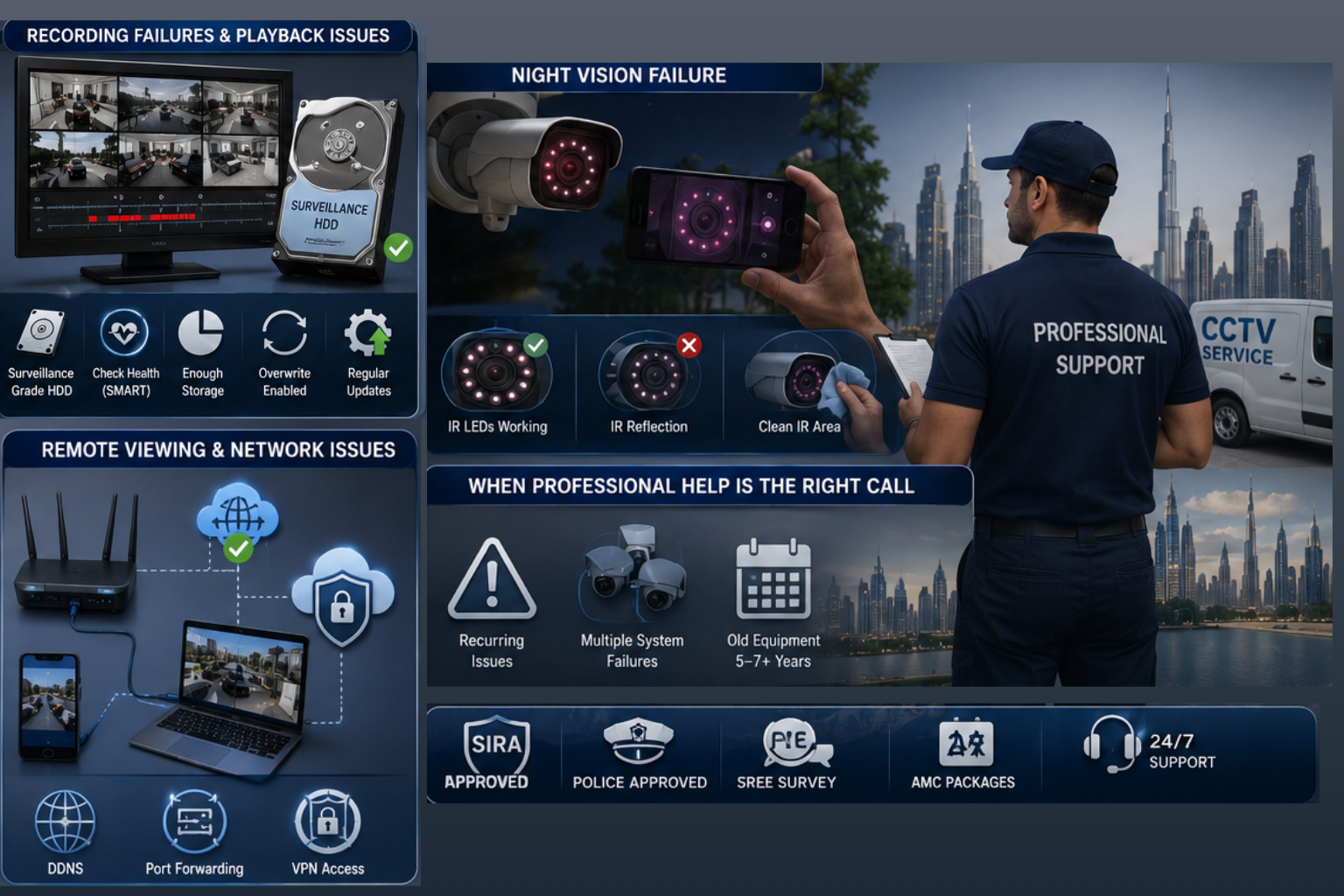
Hard drive failure is the leading cause. Replace standard desktop drives with surveillance-rated drives — WD Purple or Seagate SkyHawk — built for 24/7 continuous recording workloads. Check drive health weekly through the recorder’s storage menu; replace any drive showing SMART warnings immediately.
Storage exhaustion silently stops recording when the drive fills and overwrite is disabled. Calculate capacity based on camera count, resolution, frame rate, and retention period — then add a 30% buffer and enable continuous overwrite. Review your recording schedule and walk through each camera’s field of view monthly to confirm motion detection is triggering correctly. Apply firmware updates regularly — they frequently address recording stability and VMD sensitivity accuracy.
Remote Viewing and Network Connectivity Problems
CCTV Troubleshooting Guide UAE: Remote access breaks silently and the cause is almost always a network-layer issue rather than anything wrong with the cameras.
Dynamic IP address changes are the most common culprit — configure Dynamic DNS (DDNS) to maintain a consistent hostname regardless of when your external IP changes. Port forwarding rules are wiped whenever a router is reset; log into your router’s admin panel, verify the rules are intact, and screenshot them for quick restoration.
A VPN is the cleanest long-term solution — it eliminates direct port exposure, provides encrypted remote access to the full network, and removes attack surface from the internet entirely. Add firewall exceptions for your recorder’s communication ports and verify the manufacturer’s cloud service still supports your model. The IT Networking Solutions team at Smart Towers handles DDNS, port forwarding, and VPN configuration for CCTV systems across the UAE.
Night Vision Failure
Test IR LED status quickly: point a smartphone camera directly at your CCTV camera at night. Active IR LEDs appear as a glowing dot on the phone screen — no glow means the IR array has failed and the camera needs replacement.
IR reflection produces the opposite symptom — a washed-out white image caused by cameras mounted too close to walls or glass that bounce IR illumination back into the lens. Remount at least 6–12 inches from any reflective surface. For areas where built-in IR range is insufficient, external IR illuminators ($50–200) extend coverage independently. Clean the area in front of IR LEDs monthly — spider webs accumulate rapidly around IR-emitting components and degrade night coverage without any visible daytime symptom. Hikvision ColorVu and DarkFighter cameras are purpose-built for challenging low-light environments across UAE properties.
When Professional Help Is the Right Call
CCTV Troubleshooting Guide UAE: Self-troubleshooting resolves most CCTV faults. Three situations call for professional intervention. If the same fault recurs within days of your fix; multiple systems fail simultaneously. If equipment is over 5–7 years old and repeated repair costs are approaching replacement value.
Smart Towers Security is a SIRA-approved contractor holding Dubai Police, Sharjah Police, and Ajman Police approvals. Free site surveys are available across Dubai, Sharjah, Ajman, and Abu Dhabi, with AMC packages that include preventive maintenance, hard drive health checks, outdoor housing inspections, and 24/7 support response. These are main CCTV Troubleshooting Guide UAE.
FAQs
Why does my CCTV footage look blurry? Most commonly a dirty lens, incorrect focus settings, poor lighting, or low-resolution cameras below 1080p. Clean lenses monthly. Adjust focus for your actual monitoring distance, add IR illuminators in dark zones, and reduce H.265 compression in your DVR/NVR.
Why do my cameras keep going offline? Usually power supply instability, damaged Ethernet cables, PoE switch overload, firmware bugs, or IP address conflicts. Assign static IPs, verify per-port PoE wattage, update firmware, and check for overheating. Persistent cases need a professional maintenance visit.
Why can’t I access cameras remotely? A changed dynamic IP, lost port forwarding rules, firewall blocking, or expired cloud service support. Configure DDNS, verify port forwarding in your router, or deploy a VPN for secure, reliable remote access.
When should I call a professional? The same fault recurs after your fix and multiple systems fail together. if equipment is over 5–7 years old. Smart Towers Security offers free site surveys with same-day booking across all UAE emirates.